> ## Documentation Index
> Fetch the complete documentation index at: https://docs.gitar.ai/llms.txt
> Use this file to discover all available pages before exploring further.
# SSO
> Use SSO to login to the Gitar App
## Overview
Single Sign-On (SSO) allows your organization to use your existing identity provider to authenticate with Gitar. Instead of managing separate credentials, your team members can sign in using the same identity provider they already use for other services.
SSO is available on the Enterprise plan. Contact [developers@gitar.ai](mailto:developers@gitar.ai) to enable SSO for your organization.
## Supported Providers
Gitar supports the following identity providers:
* **Okta** -- Full setup guide documented below.
* **Any SAML 2.0 compatible provider** -- Azure AD, Google Workspace, OneLogin, and other providers that support the SAML 2.0 protocol.
## Okta Setup
Contact your Gitar account manager or email [developers@gitar.ai](mailto:developers@gitar.ai) to request SSO configuration. You will receive an email with your **SSO URL** and **Audience URI**, which are required to set up the Okta integration.
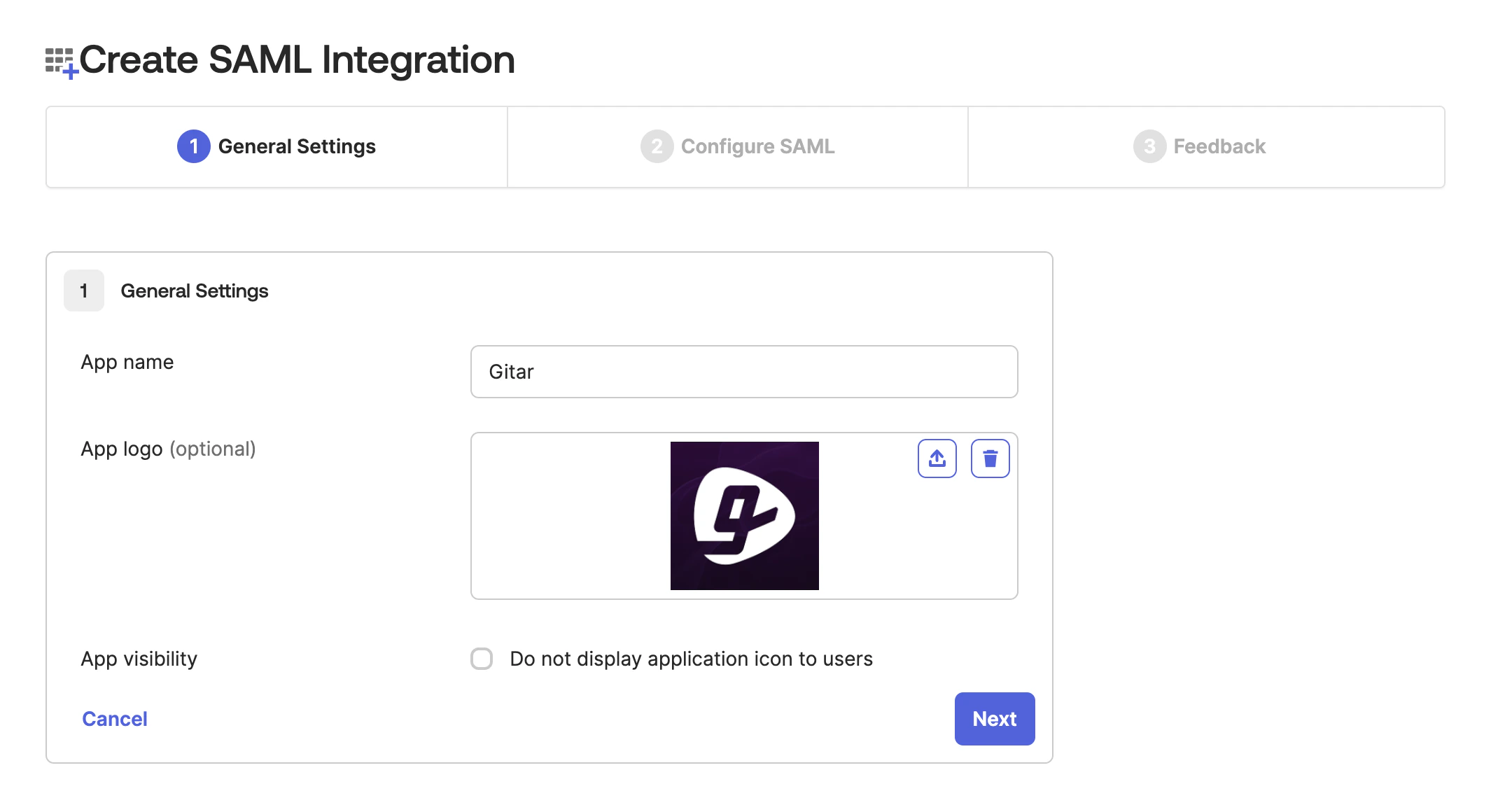
In your Okta admin console, create a new **SAML 2.0** App Integration. Name the application "Gitar" and optionally use the Gitar logo at `/assets/images/gitar-brand-logo-dark.png`.
Follow [Clerk's Okta SAML directions](https://clerk.com/docs/authentication/enterprise-connections/saml/okta) for the full walkthrough.
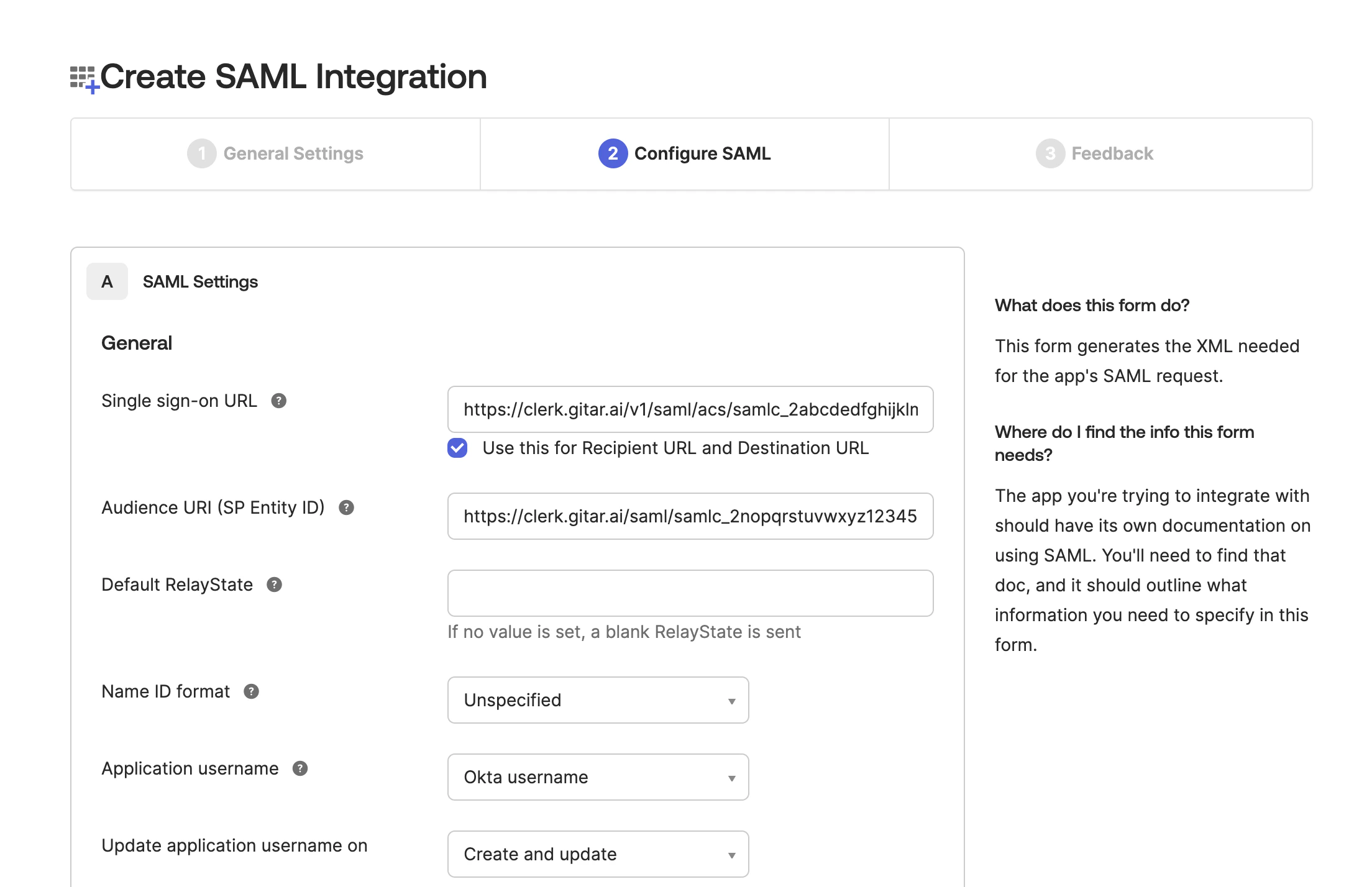
 Enter the **SSO URL** and **Audience URI** from the email you received from Gitar into the SAML settings of your Okta application.
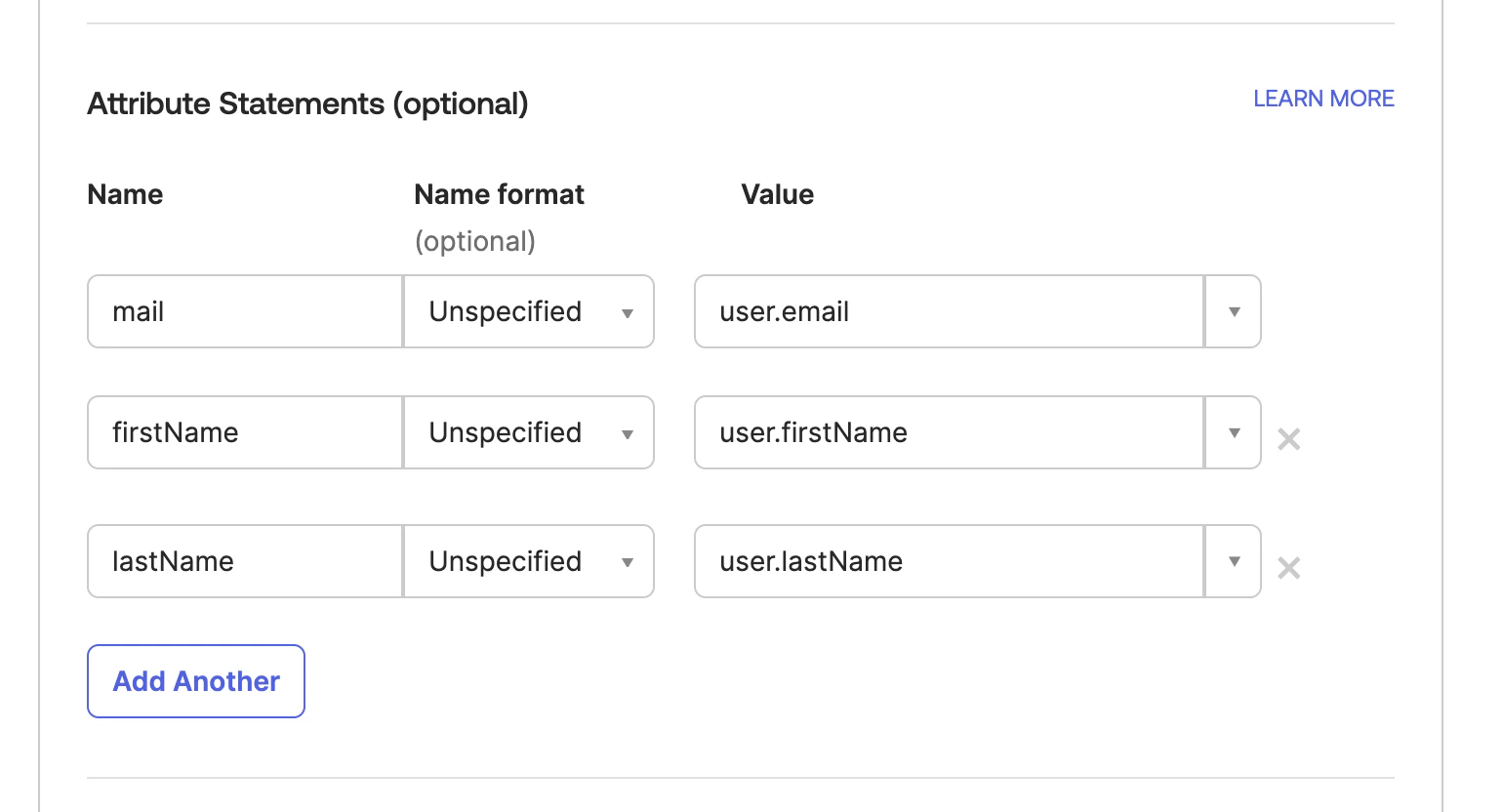
 Map the following attributes in your Okta SAML configuration:
| Attribute | Value |
| ----------- | ---------------- |
| `mail` | `user.email` |
| `firstName` | `user.firstName` |
| `lastName` | `user.lastName` |
Map the following attributes in your Okta SAML configuration:
| Attribute | Value |
| ----------- | ---------------- |
| `mail` | `user.email` |
| `firstName` | `user.firstName` |
| `lastName` | `user.lastName` |
 Assign the appropriate users and groups to the Gitar application in Okta. Once assignments are complete, copy the **Metadata URL** from Okta and send it to your Gitar account manager to finalize the setup.
## Generic SAML 2.0 Provider
For identity providers other than Okta, the setup follows the same general pattern:
1. Contact [developers@gitar.ai](mailto:developers@gitar.ai) to request your **SSO URL** and **Audience URI**.
2. Create a new **SAML 2.0** application in your identity provider and configure it with the SSO URL and Audience URI provided by Gitar.
3. Map the `email`, `firstName`, and `lastName` attributes to the corresponding user fields in your identity provider.
4. Send the **Metadata URL** from your identity provider to your Gitar account manager to complete the setup.
## Troubleshooting
Verify that the affected users are assigned to the Gitar application in your identity provider. Check that the attribute mappings for `mail`, `firstName`, and `lastName` are configured correctly and match the expected values.
Ensure the SSO URL configured in your identity provider matches exactly what was provided by Gitar. Even small differences such as a trailing slash or protocol mismatch can cause redirect issues.
Contact [developers@gitar.ai](mailto:developers@gitar.ai) to update your SSO settings or rotate credentials. Changes to your identity provider configuration may also require updating the Metadata URL on the Gitar side.
Assign the appropriate users and groups to the Gitar application in Okta. Once assignments are complete, copy the **Metadata URL** from Okta and send it to your Gitar account manager to finalize the setup.
## Generic SAML 2.0 Provider
For identity providers other than Okta, the setup follows the same general pattern:
1. Contact [developers@gitar.ai](mailto:developers@gitar.ai) to request your **SSO URL** and **Audience URI**.
2. Create a new **SAML 2.0** application in your identity provider and configure it with the SSO URL and Audience URI provided by Gitar.
3. Map the `email`, `firstName`, and `lastName` attributes to the corresponding user fields in your identity provider.
4. Send the **Metadata URL** from your identity provider to your Gitar account manager to complete the setup.
## Troubleshooting
Verify that the affected users are assigned to the Gitar application in your identity provider. Check that the attribute mappings for `mail`, `firstName`, and `lastName` are configured correctly and match the expected values.
Ensure the SSO URL configured in your identity provider matches exactly what was provided by Gitar. Even small differences such as a trailing slash or protocol mismatch can cause redirect issues.
Contact [developers@gitar.ai](mailto:developers@gitar.ai) to update your SSO settings or rotate credentials. Changes to your identity provider configuration may also require updating the Metadata URL on the Gitar side.