

JIRA Integration
Connect Gitar with JIRA using Personal Access Token
Connect Gitar with your JIRA instance to track issues, manage project workflows, and sync development activities with your project management.
Prerequisites
Before setting up the JIRA integration, ensure you have:
- Admin access to your JIRA instance
- A JIRA Personal Access Token with the required permissions
- Your JIRA instance URL and user email
Required Permissions
Your JIRA Personal Access Token must have the following permissions:
- Read issues and comments - View and access issue data
- Create and manage webhooks - Set up automated notifications
- Access project information - Retrieve project details and metadata
Setting Up JIRA Integration
Step 1: Create JIRA Personal Access Token
To create a Personal Access Token in JIRA:
- Log into your JIRA instance
- Go to Account Settings → Security → API tokens
- Click Create API token
- Enter a label for your token (e.g., "Gitar Integration")
- Copy the generated token immediately (you won't be able to see it again)
- Use this token in the Gitar integration form
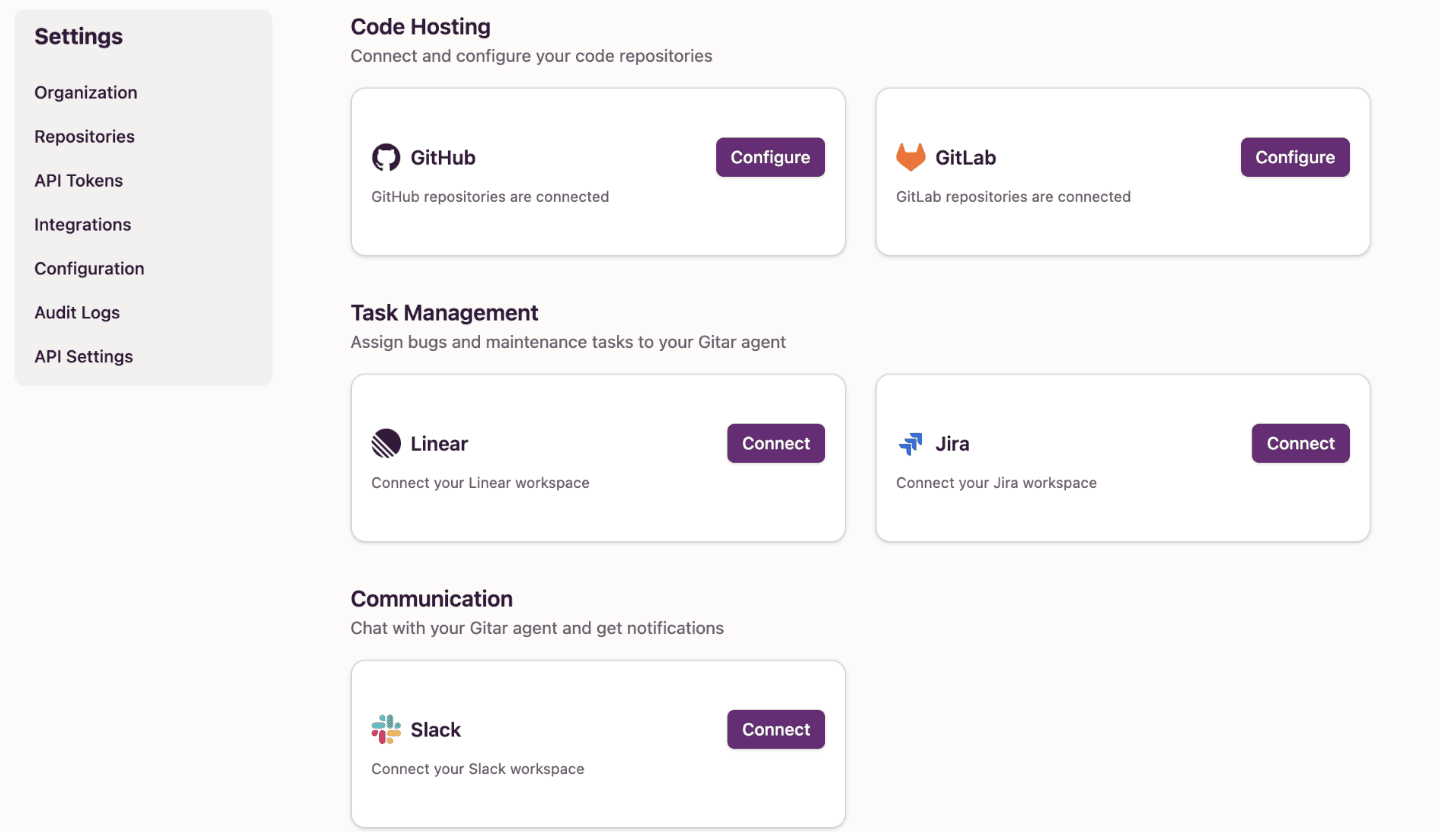
Step 2: Access Gitar Integrations Page
- Navigate to your Gitar integrations page
- Look for the "Jira Connect" button
- Click on the button to begin the setup process
Step 3: Configure JIRA Connection
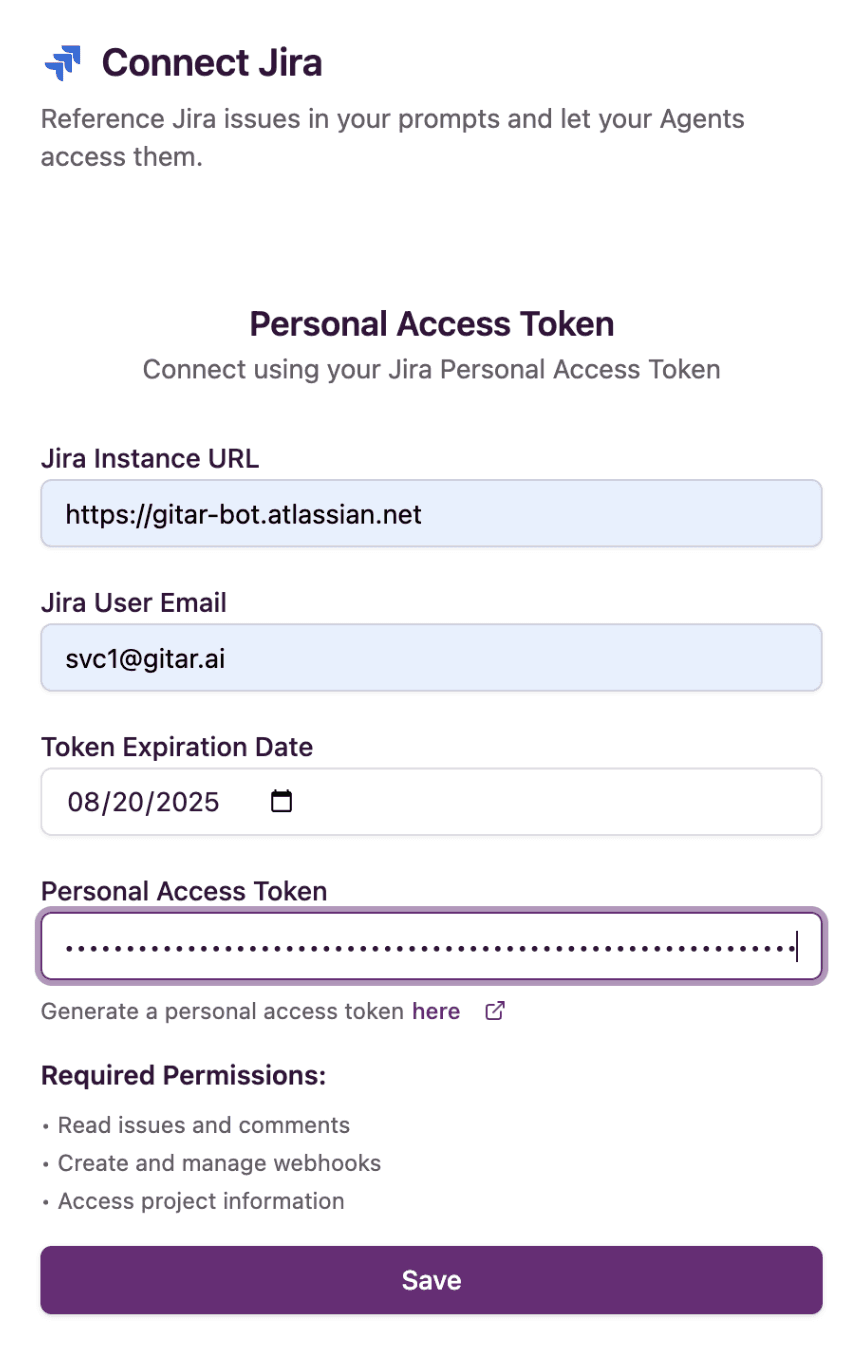
When you click the Jira "Connect" button, you'll be prompted to enter the following information:
JIRA Instance URL
Enter your complete JIRA instance URL (e.g., https://your-company.atlassian.net)
JIRA User Email
Provide the email address associated with your JIRA account (e.g., user@company.com)
Token Expiration Date
Set an expiration date for your Personal Access Token for security purposes
Personal Access Token
Enter your JIRA Personal Access Token. This token will be securely stored and used for API authentication. See Step 1 for creating this.
Step 4: Complete Connection
- Fill in all required fields in the integration form
- Click "Save" to establish the connection
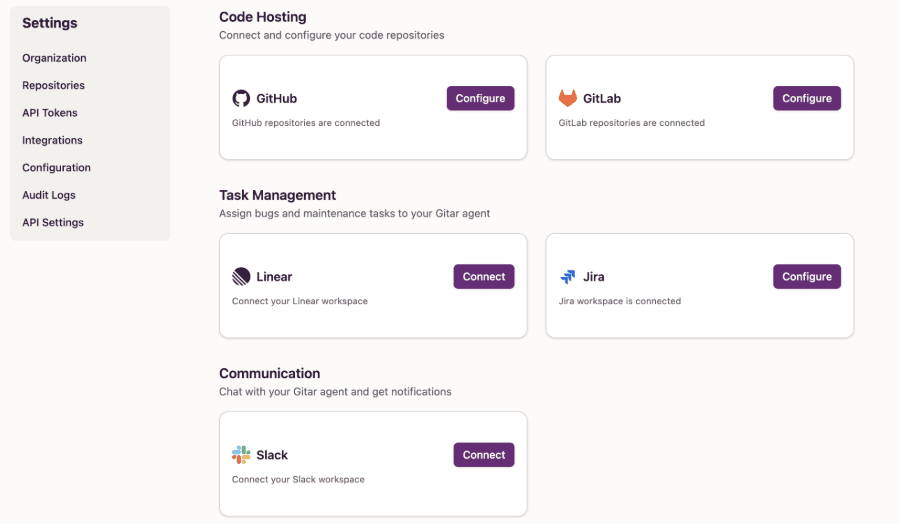
- If the connection is successful, the original Gitar Integrations page will change from Jira "Connect" to "Configure"
Post-Integration Setup
Once your JIRA integration is successfully connected:
- The "Connect" button will change to "Configure"
- You can access additional configuration options by clicking "Configure"
- Your JIRA instance will be linked with your Gitar workspace
- Webhooks will be automatically configured for real-time synchronization
Troubleshooting
Connection Failed
If your connection fails, verify:
- JIRA instance URL is correct and accessible
- Email address matches your JIRA account
- Personal Access Token has the required permissions
- Token has not expired
Token Permissions
Ensure your Personal Access Token includes all required permissions:
- Read issues and comments
- Create and manage webhooks
- Access project information
Security Notes
- Personal Access Tokens are encrypted and securely stored
- Tokens can be revoked at any time from your JIRA account settings
- Set appropriate expiration dates for tokens
- Regularly review and rotate tokens for enhanced security