

SSO is available on the Enterprise plan. Contact developers@gitar.ai to enable SSO for your organization.
Supported Providers
Okta is documented step by step below. Any other SAML 2.0 provider follows the same pattern, including Azure AD, Google Workspace, and OneLogin.Okta Setup
1
Request SSO Configuration
Contact your Gitar account manager or email developers@gitar.ai to request SSO configuration. You will receive an email with your SSO URL and Audience URI, which are required to set up the Okta integration.
2
Create Okta Application
In your Okta admin console, create a new SAML 2.0 App Integration. Name the application “Gitar” and optionally use the Gitar logo at 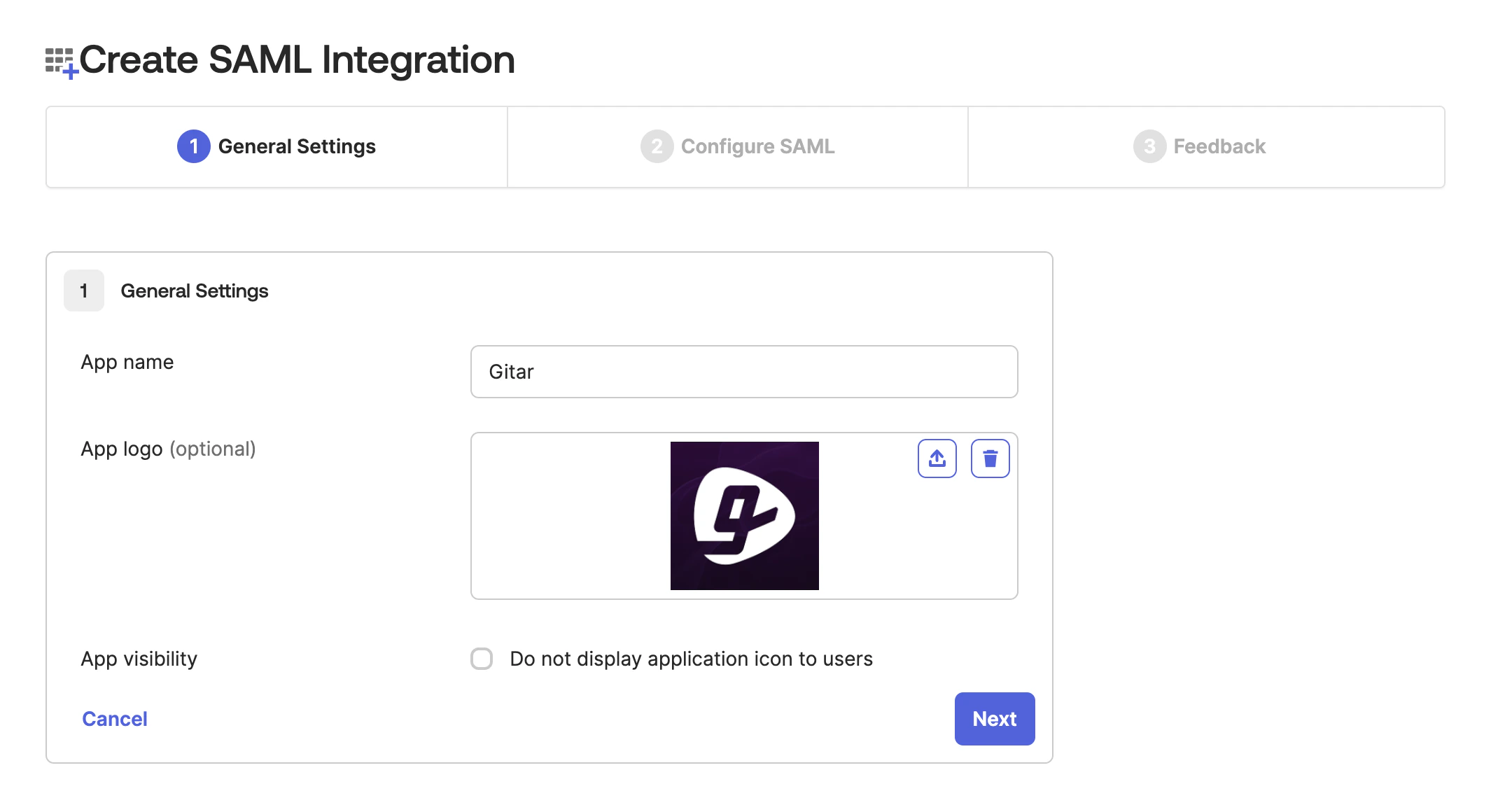
/assets/images/gitar-brand-logo-dark.png.Follow Clerk’s Okta SAML directions for the full walkthrough.3
Configure SAML Settings
Enter the SSO URL and Audience URI from the email you received from Gitar into the SAML settings of your Okta application.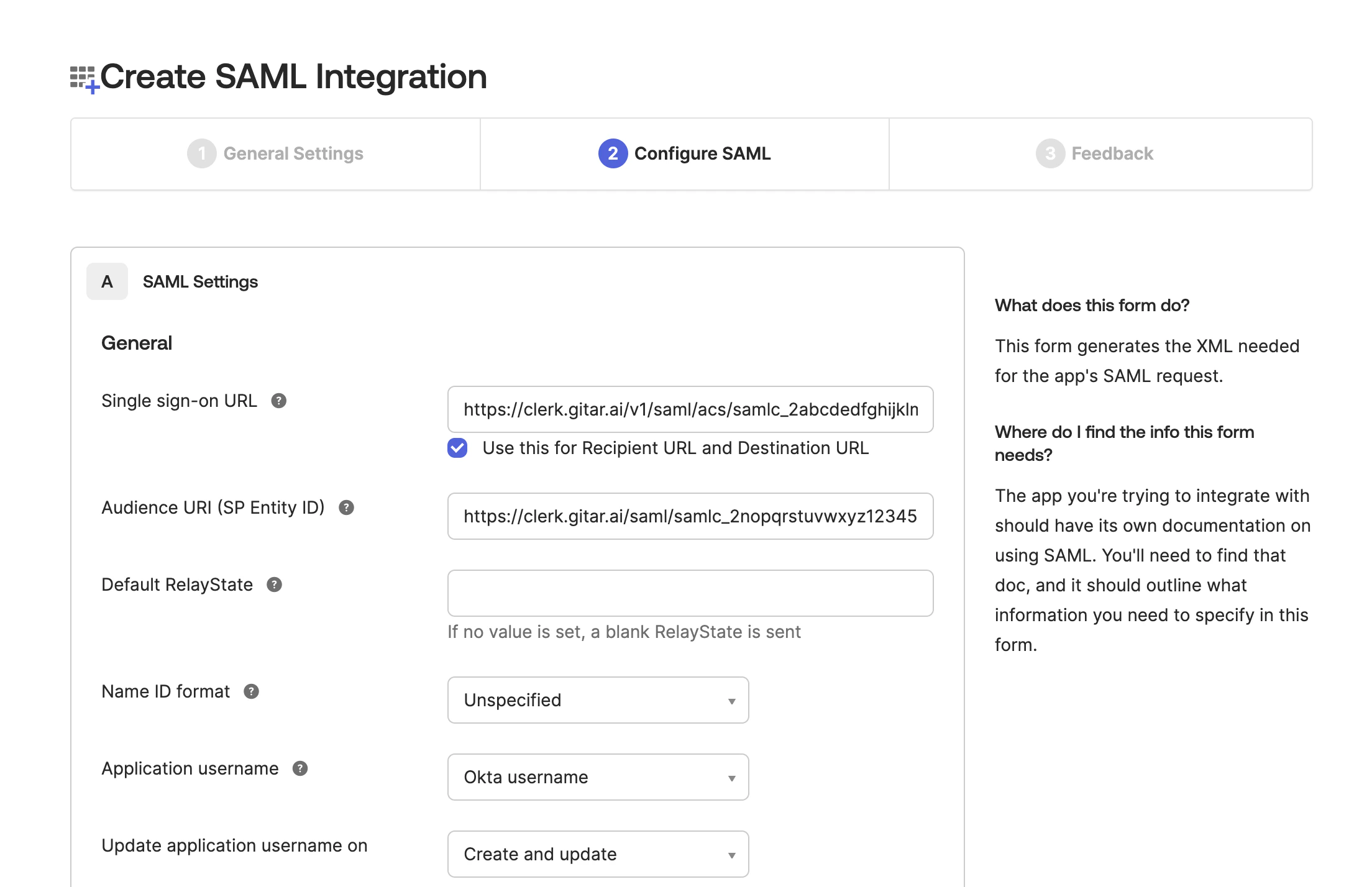
4
Set Attribute Mappings
Map the following attributes in your Okta SAML configuration: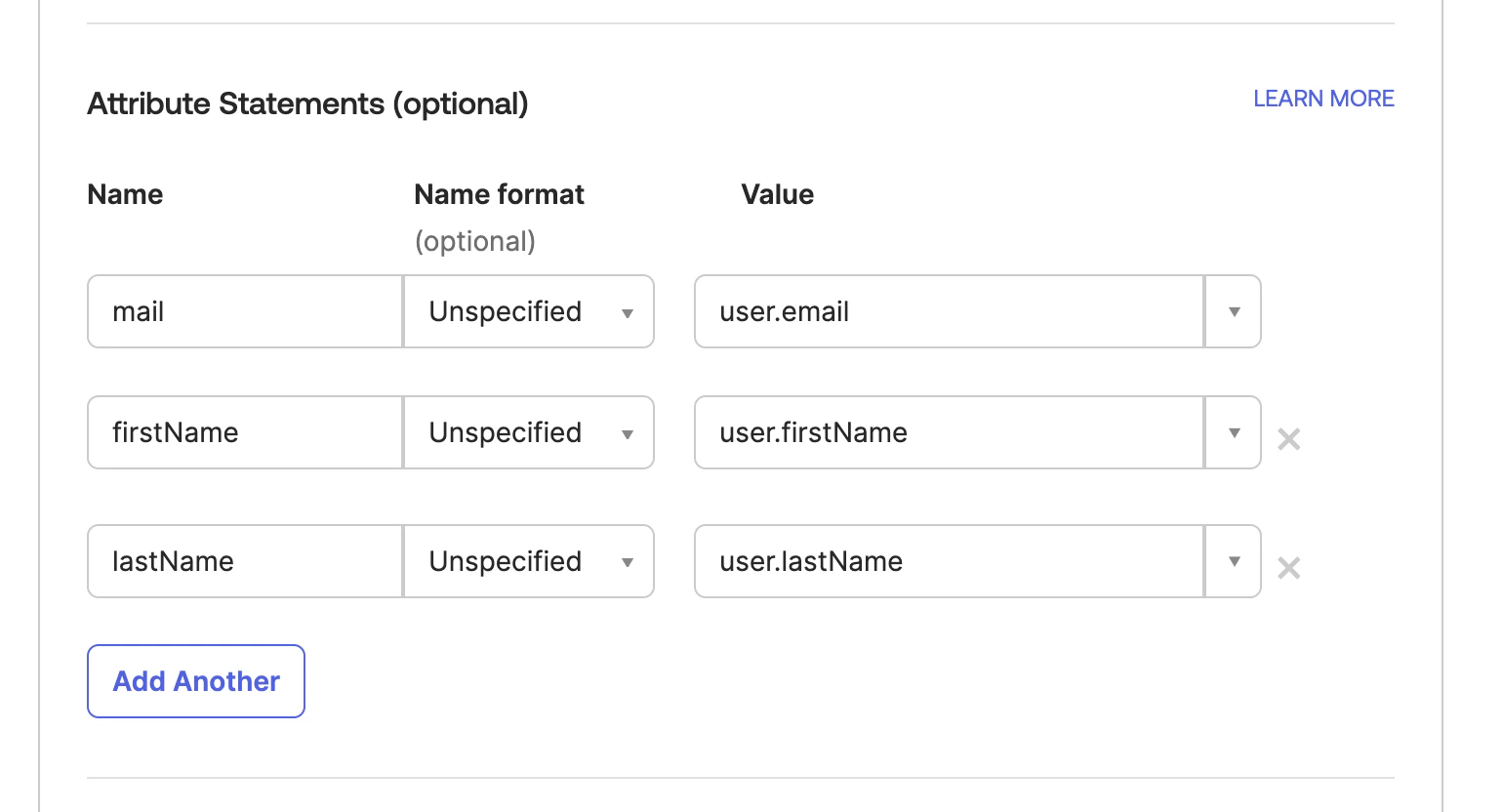
5
Complete Configuration
Assign the appropriate users and groups to the Gitar application in Okta. Once assignments are complete, copy the Metadata URL from Okta and send it to your Gitar account manager to finalize the setup.
Generic SAML 2.0 Provider
For identity providers other than Okta, the setup follows the same general pattern:- Contact developers@gitar.ai to request your SSO URL and Audience URI.
- Create a new SAML 2.0 application in your identity provider and configure it with the SSO URL and Audience URI provided by Gitar.
- Map the
email,firstName, andlastNameattributes to the corresponding user fields in your identity provider. - Send the Metadata URL from your identity provider to your Gitar account manager to complete the setup.
Troubleshooting
Users can't sign in with SSO
Users can't sign in with SSO
Verify that the affected users are assigned to the Gitar application in your identity provider. Check that the attribute mappings for
mail, firstName, and lastName are configured correctly and match the expected values.SSO login redirects to the wrong page
SSO login redirects to the wrong page
Check that the SSO URL configured in your identity provider matches exactly what Gitar sent you. Even small differences such as a trailing slash or protocol mismatch can cause redirect issues.
How do I update my SSO configuration?
How do I update my SSO configuration?
Contact developers@gitar.ai to update your SSO settings or rotate credentials. Changes to your identity provider configuration may also require updating the Metadata URL on the Gitar side.